Add PDFs
PDFs can be assigned to a PO so that they can be printed as accompanying documents to the PO when it is issued or revised. PDF files can be uploaded or selected from a PDF Library created in the Admin > Purchase Orders > PDFs page by a Super Admin or PO Manager roles.
Upload a PDF (6 Steps)
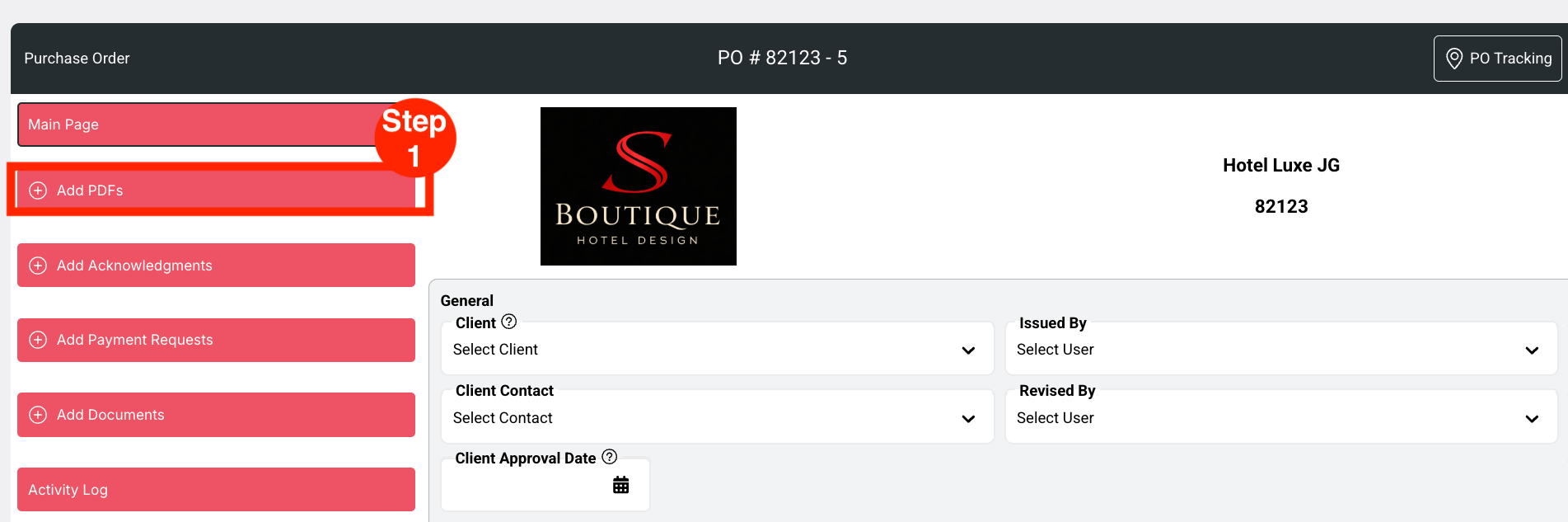
- Step 1: Click on the red button ‘Add PDFs.’
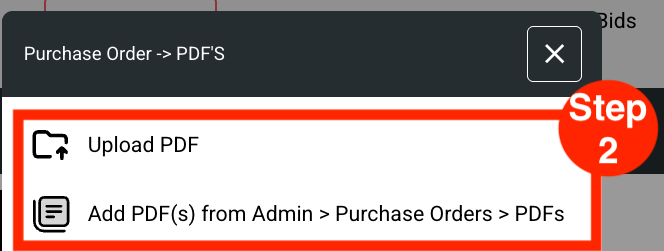
- Step 2: Select ‘Upload PDF'.
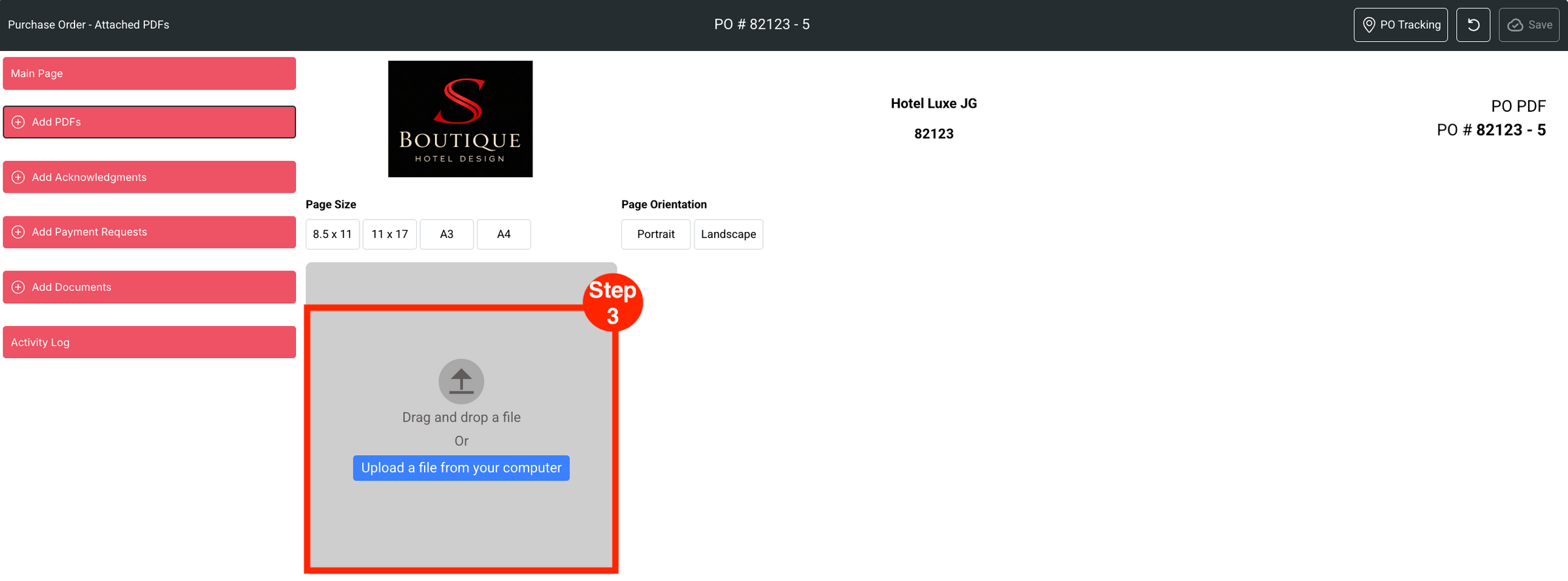
- Step 3: ‘Drag and drop a file’ or ‘Upload a file from your computer’.
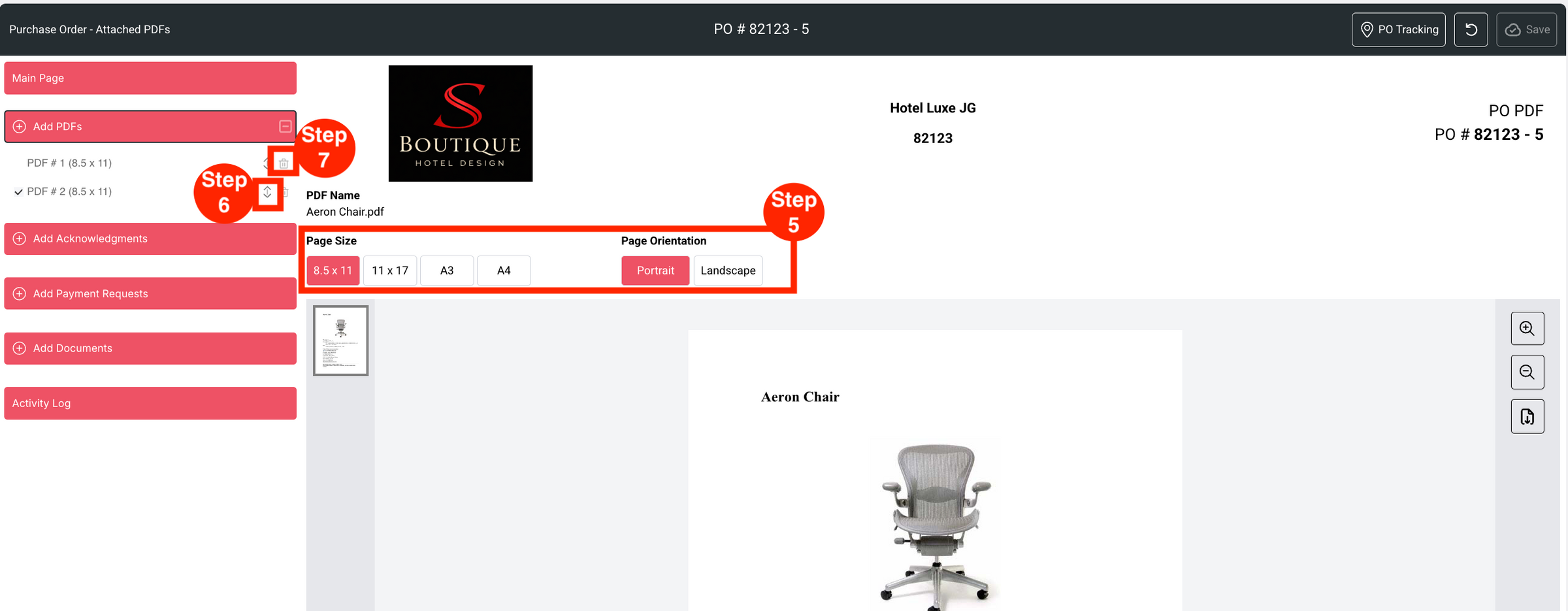
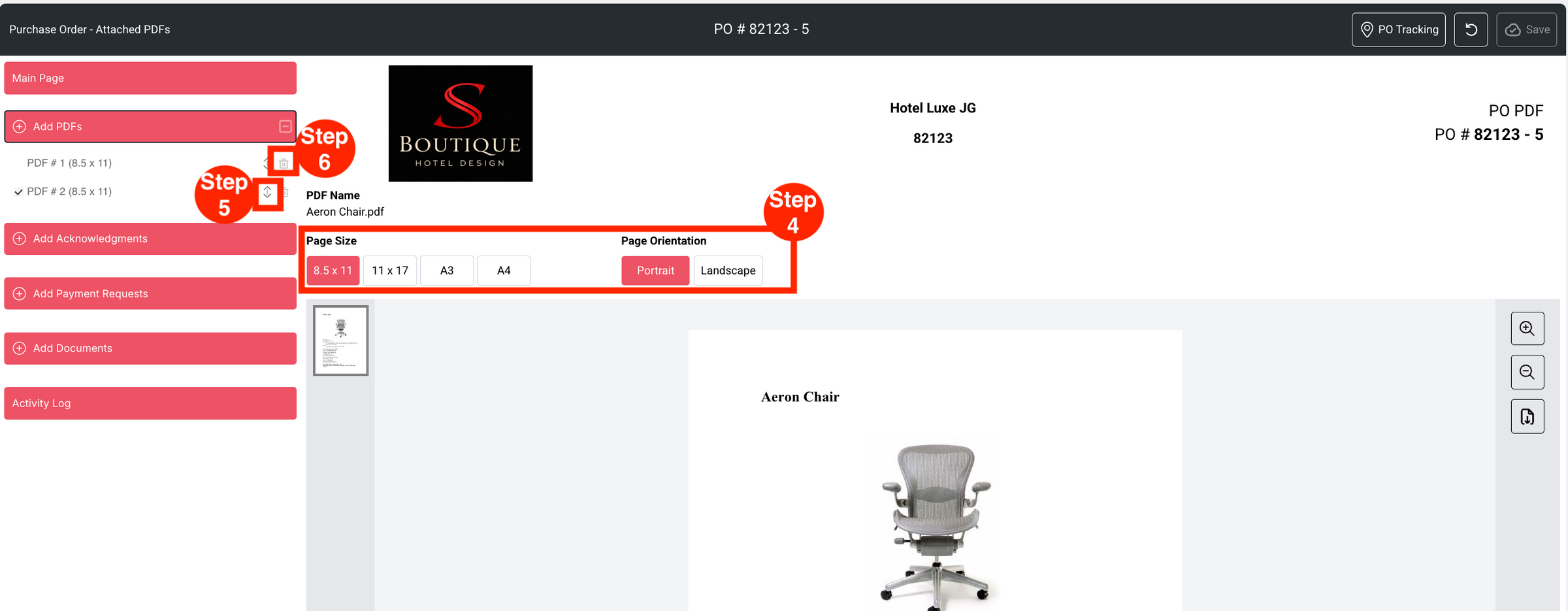
- Step 4: Select/confirm the Page Size and Page Orientation.
- Step 5: Use the drag-n-drop arrows to arrange in the desired order.
- Step 6: Use the delete Trash bin icon to remove PDFs.
Add PDF (6 Steps)
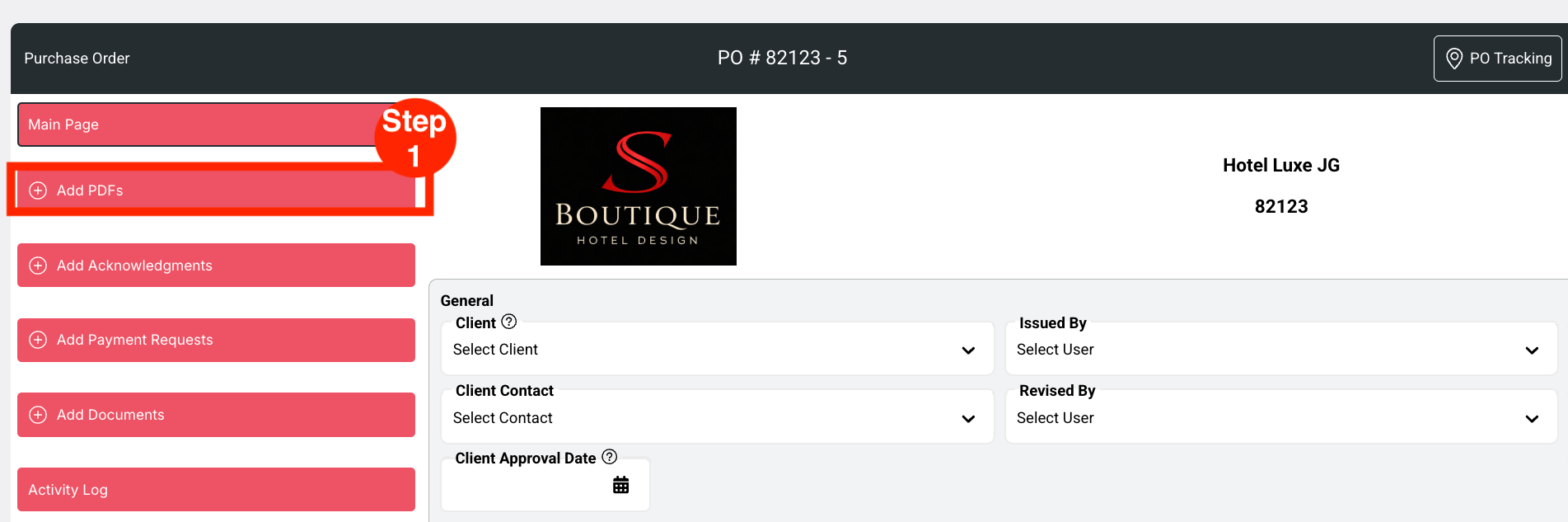
- Step 1: Click on the red button ‘Add PDFs.’
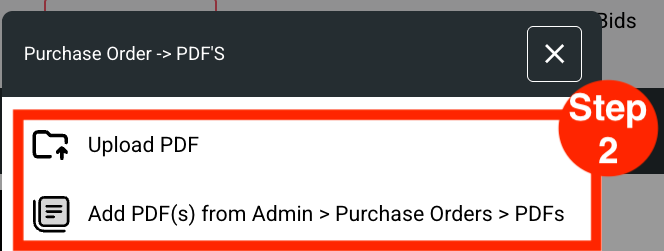
- Step 2: Select ‘Add PDF(s) from Admin >Purchase Orders > PDFs.’
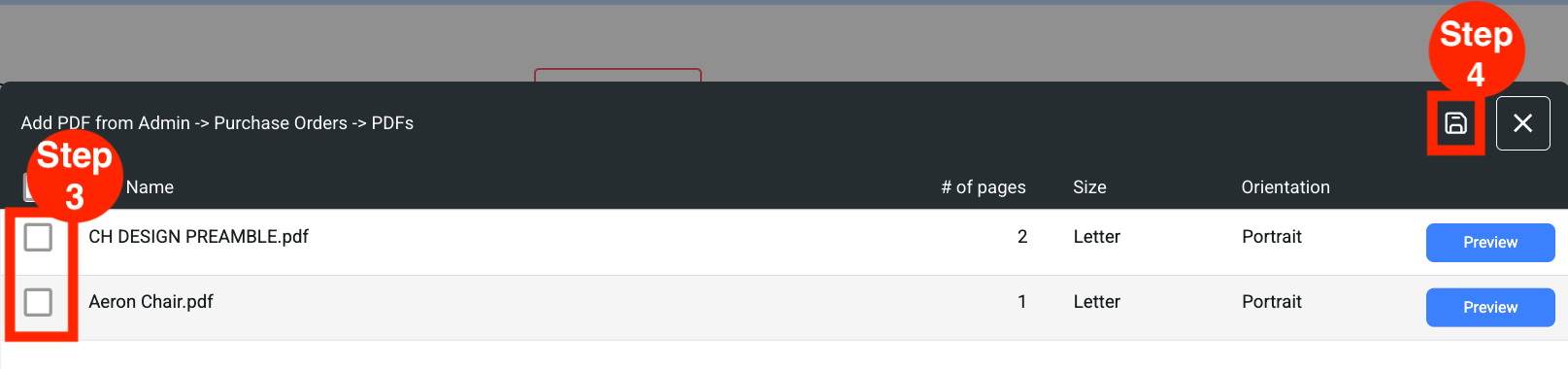
- Step 3: Select desired PDF document to attach to the PO.
- Step 4: Click Save.
- Click Preview is an option to review the document before saving.
- Step 5: Select/confirm the Page Size and Page Orientation.
- Step 6: Use the drag-n-drop arrows to arrange in the desired order.
- Step 7: Use the delete Trash bin icon to remove PDFs.