Create New Purchase Order
A Purchase Order (PO) can be created for one or multiple items on a single PO. A PO can be directed toward a Manufacturer or a Vendor. Several options of information from the Spec Sheet are available to be included on a PO. Once a PO is generated, it becomes a separate document from the designer’s Spec Sheet. Future modifications to the Spec Sheet do not affect the PO. Future modifications to the PO do not alter the original Spec Sheet.
General Section
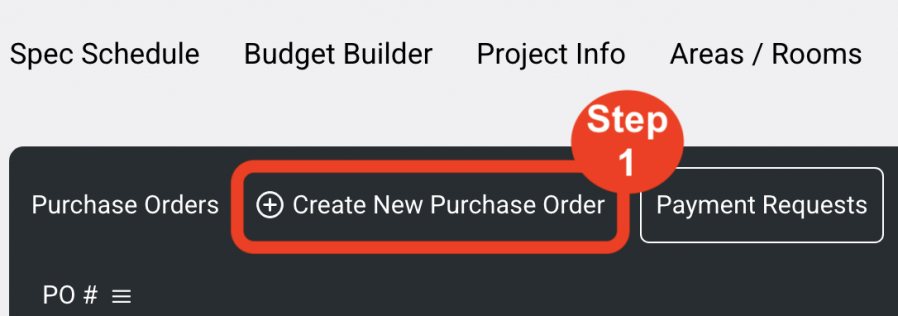
- Step 1: Click ‘Create New Purchase Order’ button in the black navigation header. The view will now become the ‘Main Page’ of the PO.
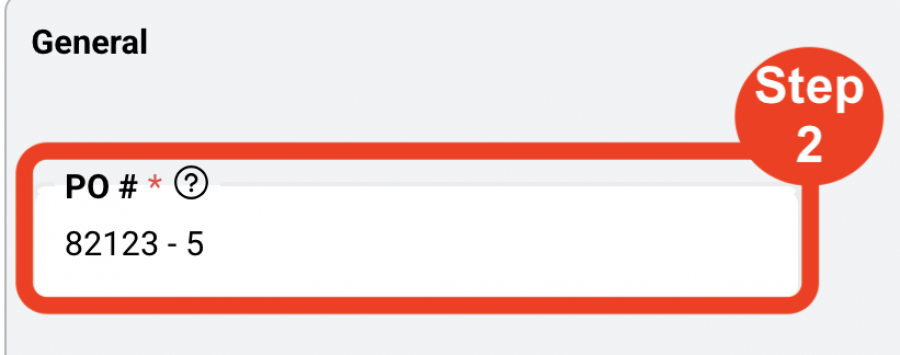
- Step 2: PO #. The PO number is auto generated; however, a user can edit this number as required. (Required)
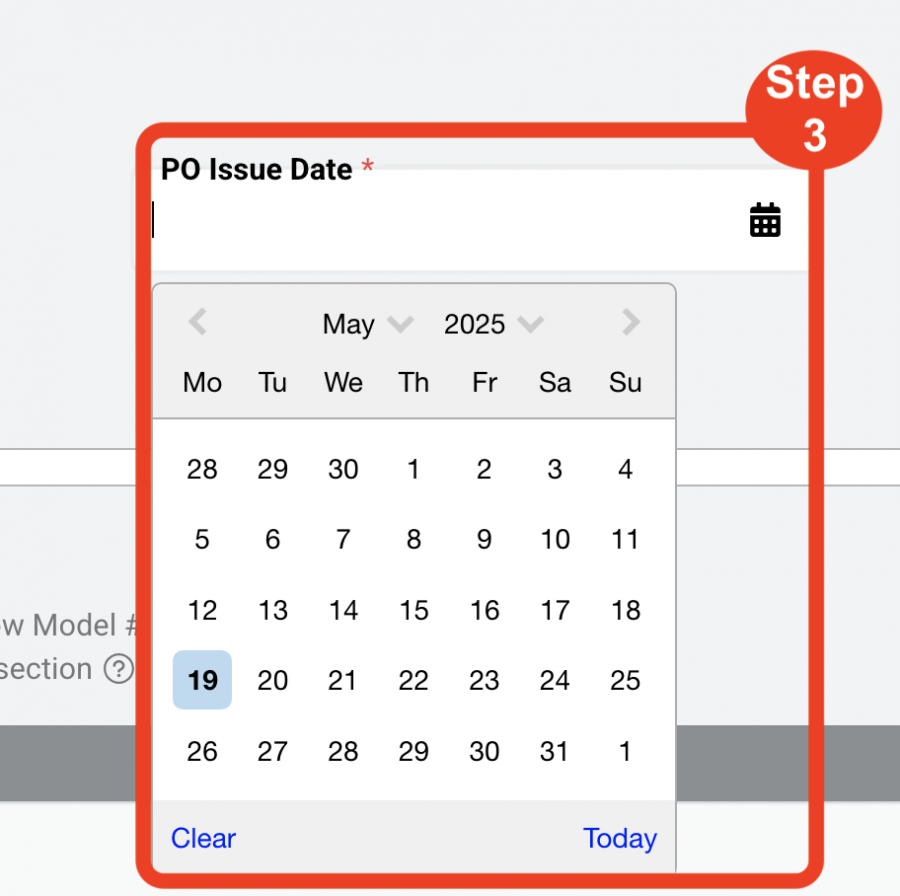
- Step 3: Select the ‘PO Issue Date’ by clicking in the field or on the calendar. (Required)
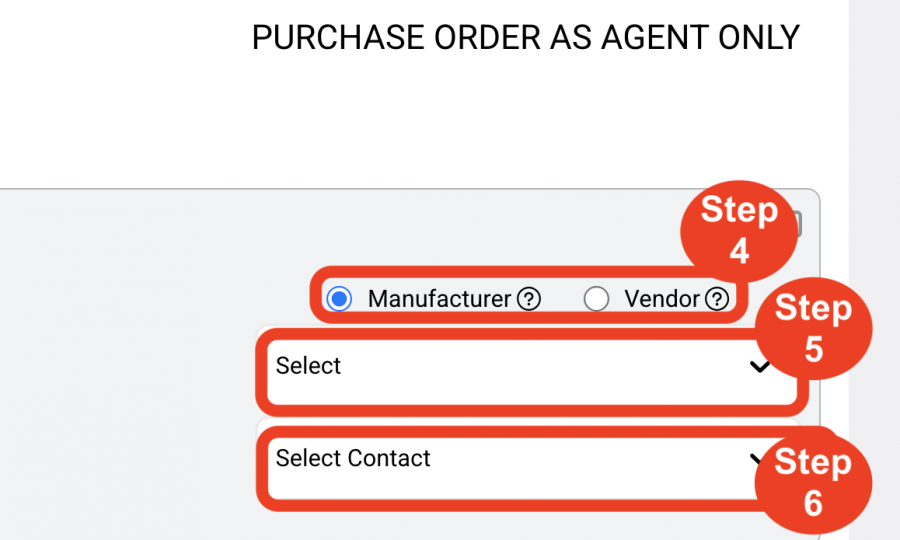
- Step 4: Select either a Manufacturer or Vendor as recipient. (Required)
- The Manufacturer and Vendor must first be assigned by the Designer / User in a Specification. Refer to ‘Edit Spec Sheet’.
- Step 5: Select the Company Name.
- Step 6: Select the Contact Name.
Items Section
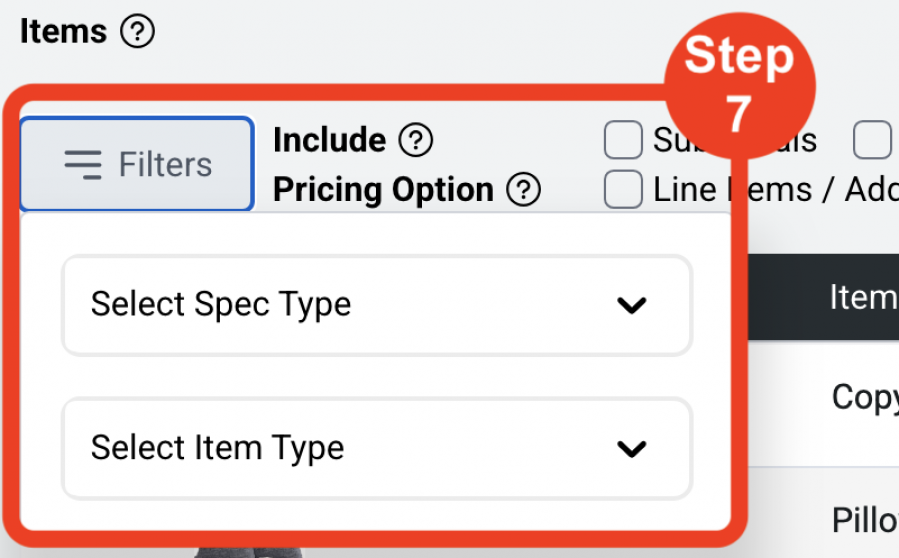
- Step 7: Filter by either Spec Type of Item Type.
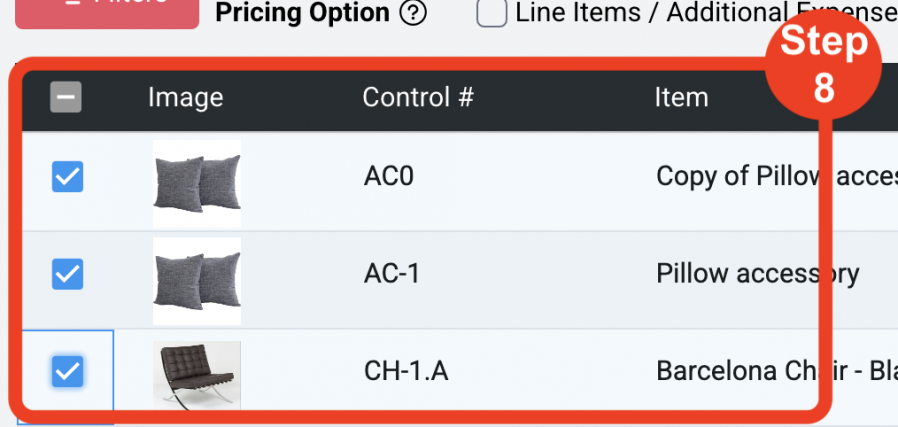
- Step 8: Select items to be included in the PO. (Required)
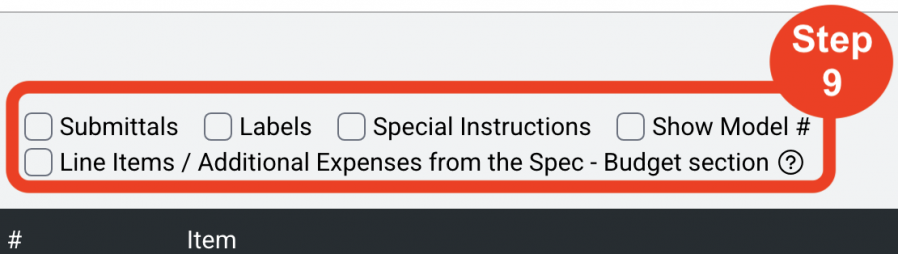
- Step 9: Select Spec Sheet options ie.
- Submittals
- Labels
- Special Instructions
- Model #
- Pricing Option ‘Use Line Items / Additional Expenses from Item Budget tab.’
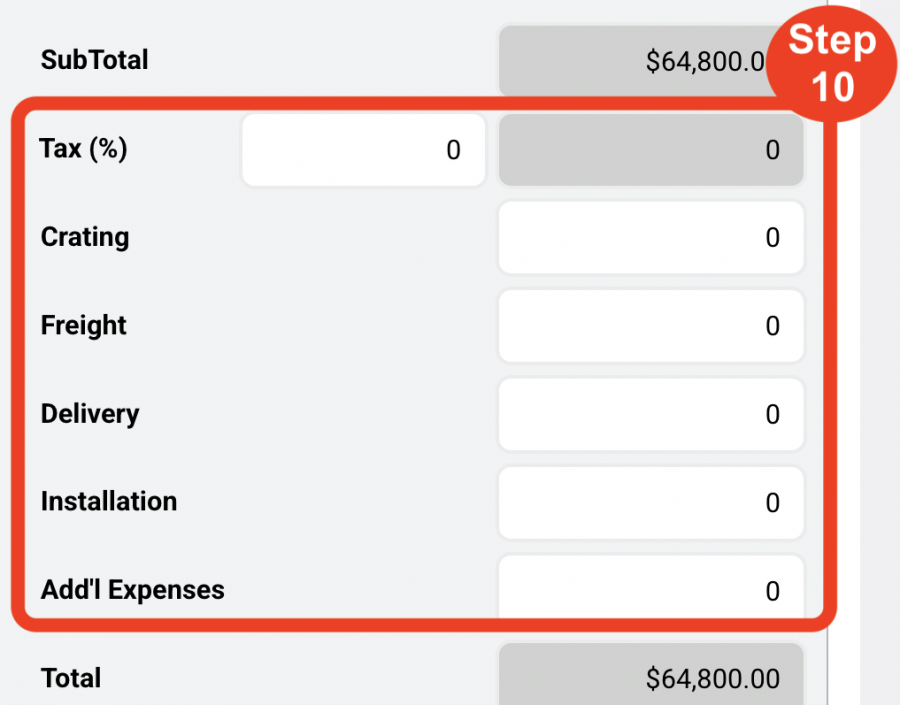
- Step 10: Enter Line Items for the PO.
- Enter Tax(%).
- Enter Crating.
- Enter Freight.
- Enter Delivery.
- Enter Installation.
- Enter Additional Expenses.
- Step 11: Click Save icon.