Edit Items section
- Step 1: Edit PO Item Detail Options - Include additional information from the item(s) specification within the body of the PO ie.
- Submittals
- Labels
- Special Instructions
- Model #

- Step 2: Use Line Item Cost Option – Use spec item’s individual Line Item Costs directly from the pricing data entered in the Budget tab of a spec item. These costs are predicated on individual items information and not a collective amount for all items on a single Purchase Order.

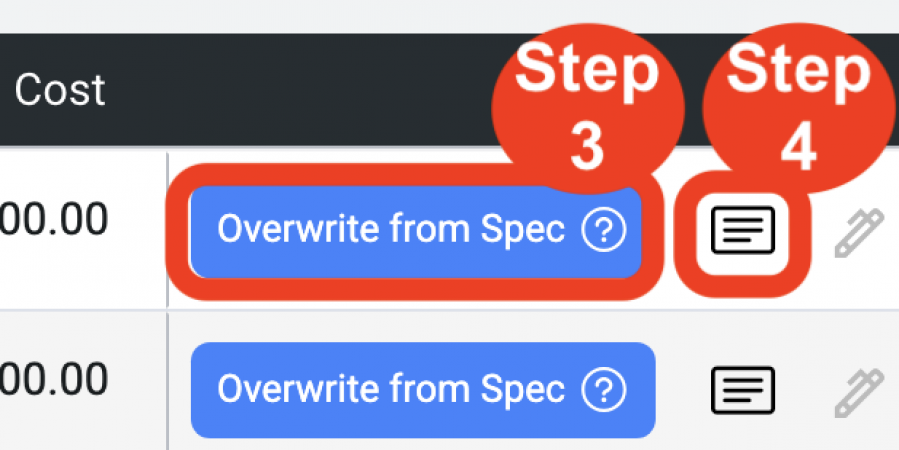
- Step 3: Edit Purchase Order information using ‘Overwrite PO’. This option will overwrite existing Purchase Order information with the Spec Sheet data for Submittals, Labels, Special Instructions and model #s.
- Step 4: Edit PO Item Details – Allows the PO Editor to revise/update information in the Purchase Order without modifying the original Spec Sheet data.
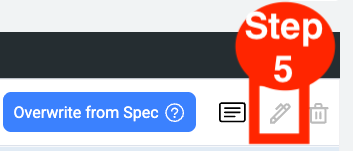
- Step 5: Edit Pen icon – Allows data to be revised/updated in each column with a red heading, directly in the grid, without modifying the original Spec Sheet’s Item Name, Qty, or Unit Cost.
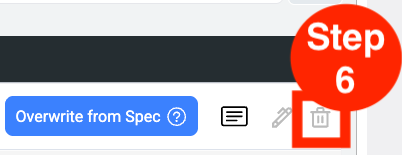
- Step 6: Delete Trash Bin icon – Remove items from the PO as required.
- Step 7: Edit Line Item Cost fields as required.
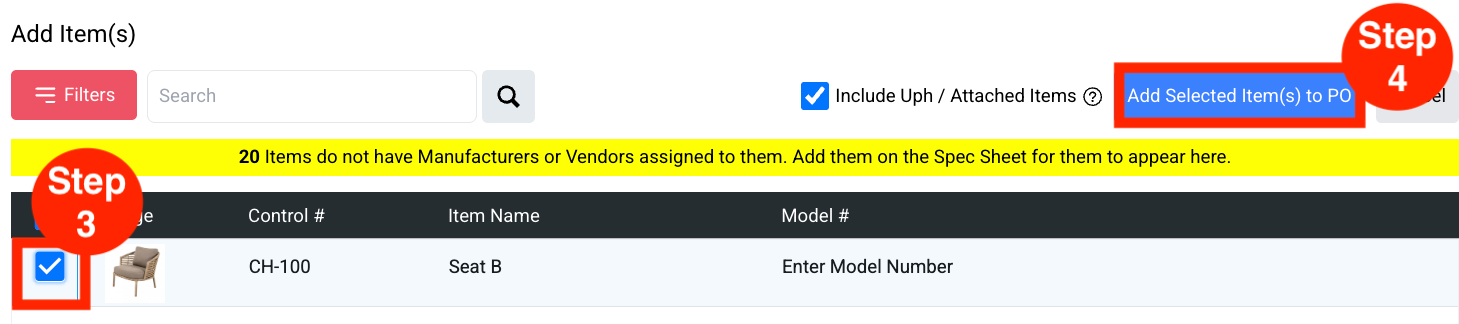
Add Item(s) Pull-Out Tab (4 Steps)
- Step 1: Click on the blue ‘Add Item(s)’ pull-out tab.
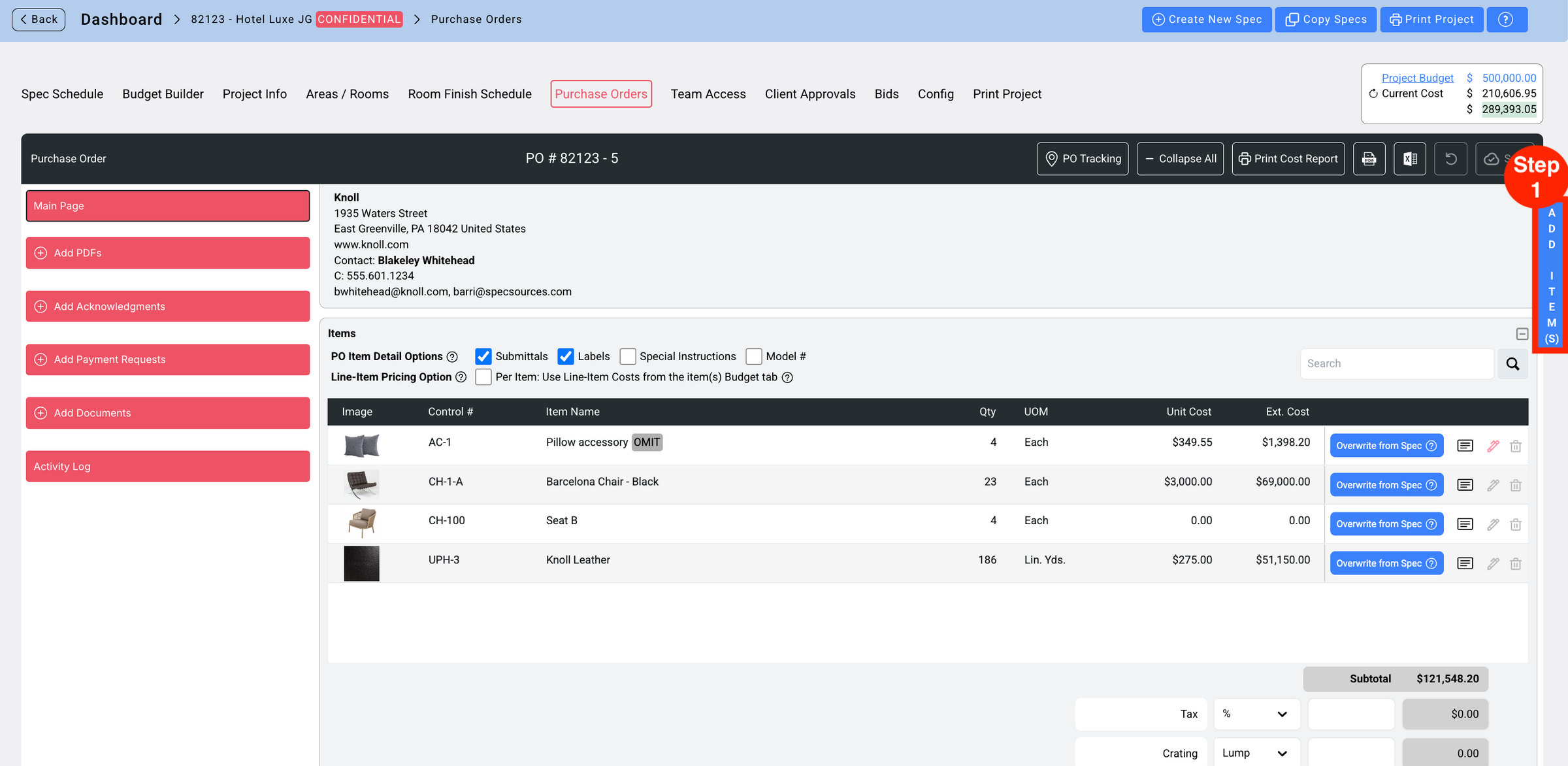
- Step 2: Click Filter and filter by Spec Type or Item Type.
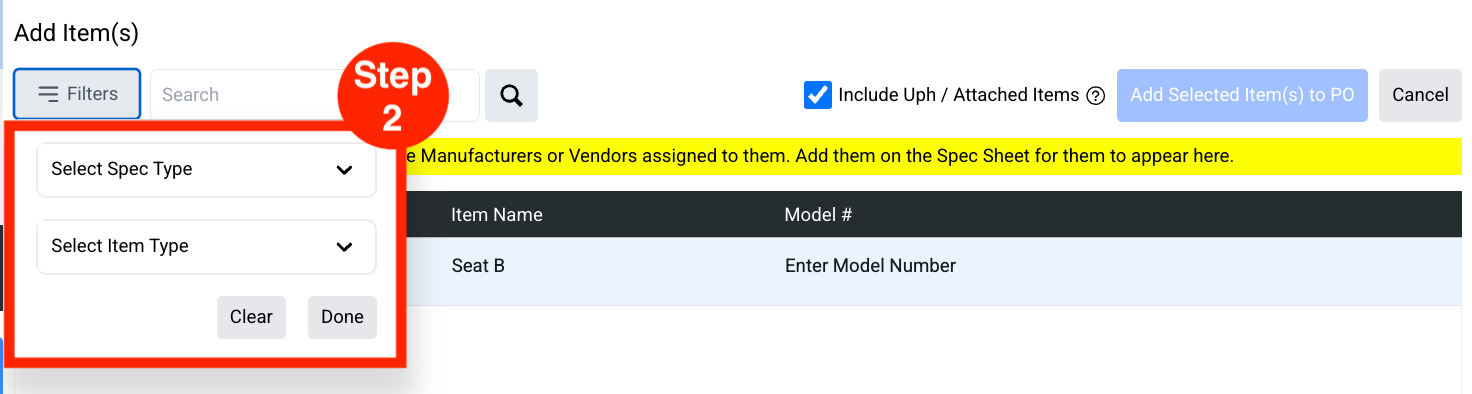
- Step 3: Select Item(s) to be added to the PO.
- Step 4: Click ‘Add Selected Item(s) to PO.