Recent Projects
OVERVIEW
This section allows a Designer / User to view and access their own Projects and to reference the complete list of office-wide Projects. Each user, upon signing in, can view their most recent Projects that they have been working on. The Project list displays the Cover Sheet image, Project Name and #, total # of Specs, # of Team Access members and a Project Budget amount.
All of these fields are pulled from the Project Info page and can be edited there, once a Project has been selected.
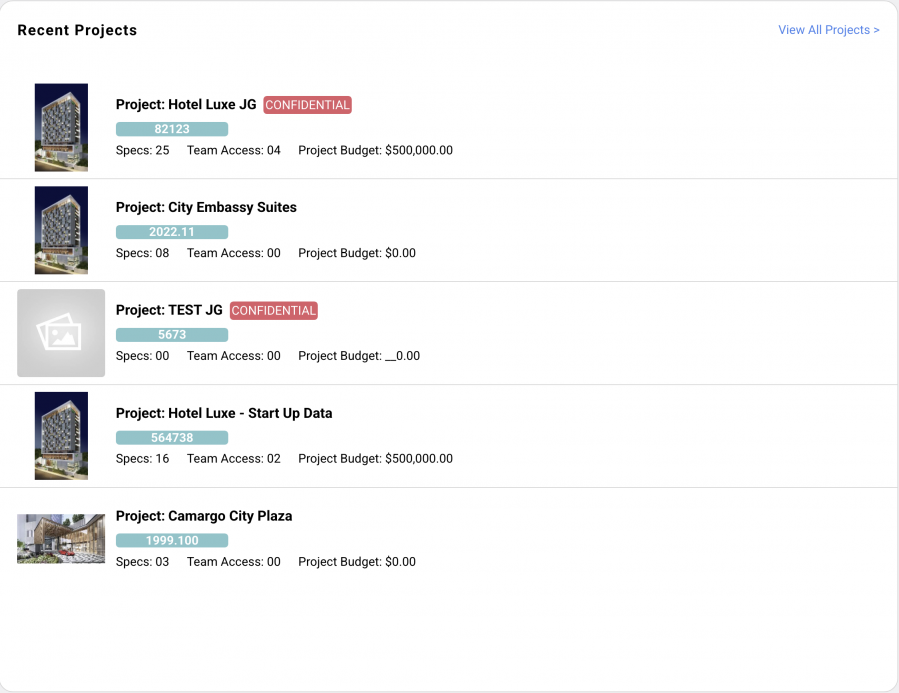
To view an individual Project, a user can scroll over the Project row for the following functions:
- Click on the Project row to open the project to the Spec Schedule.
- Click on a Cover Sheet image, the Project Name or the Project Number to open the project to the Spec Schedule.

- Click on Project Budget to open the project to the Project Info page.
- Click on the Edit pen Project icon to open the project to the Project Info page.

- Click on the Edit Members or Team access icon to open the project to the Team Access page.

- Click on the Print icon to open the project to the Print Project page.

- Click on the Copy Project icon to open the project to the Copy Project page.

- Click on the Trash Bin icon to delete the project.