Project Special Instructions
(Roles: Super Admin, Admin Panel Manager)
OVERVIEW
Project Special Instructions are notes that apply to the entire Project and appear on every Spec Sheet, directly above the item-specific Special Instructions.
These instructions communicate important Project-wide guidelines.
IE. "Dealer responsible for all quantities" or "Images are for reference only."
Project Special Instructions can be entered manually in the Project Info page or selected from the Project Special Instructions Library, which is maintained in the Admin page.
QUICK TUTORIAL
Project Special Instruction
Create a Project Special Instruction
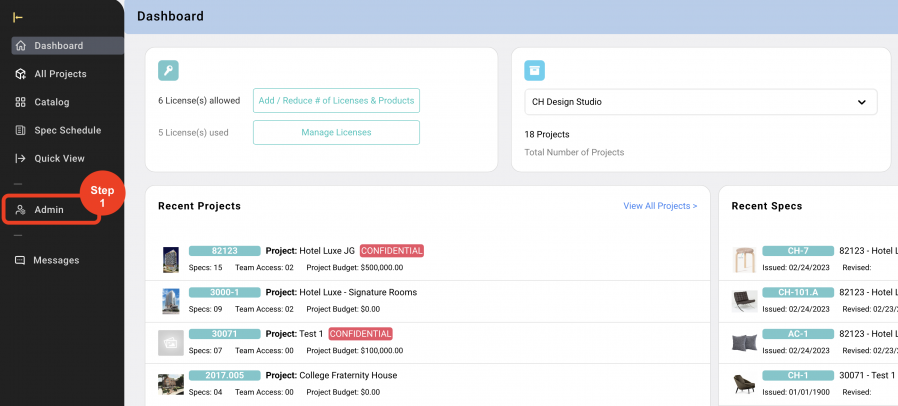
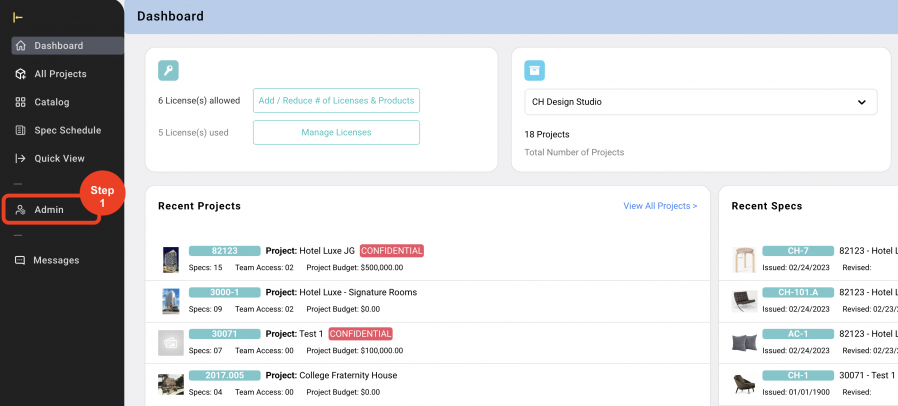
- Step1: In the Left Navigation, click on ‘Admin’.
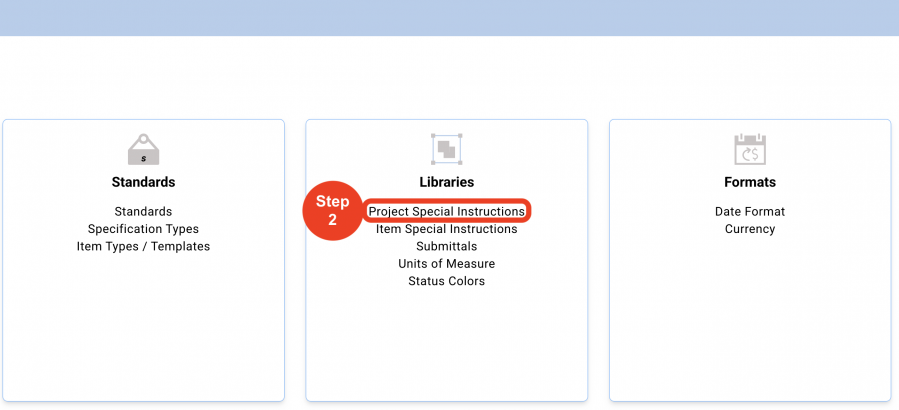
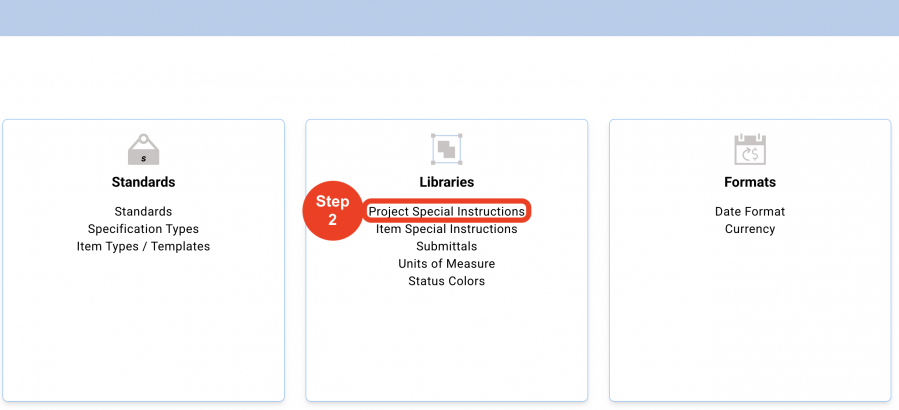
- Step 2: Go to 'Libraries' and click on ‘Project Special Instructions’.
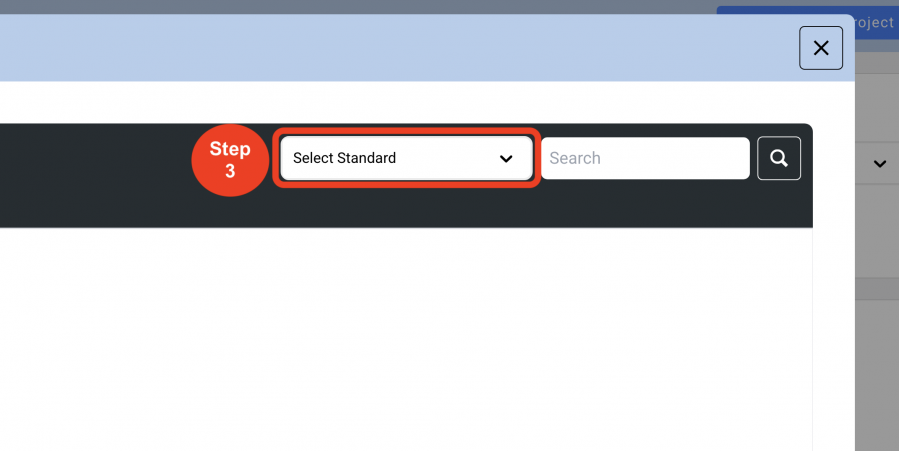
- Step 3: From the dropdown at the top, select the Standard that the Project Special Instruction will be assigned to.
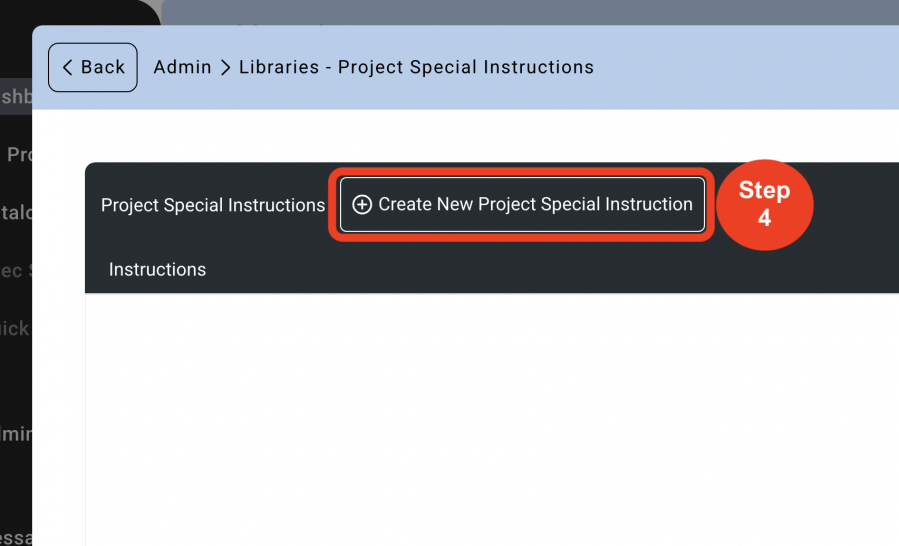
- Step 4: Click on ‘Create New Project Special Instruction’.
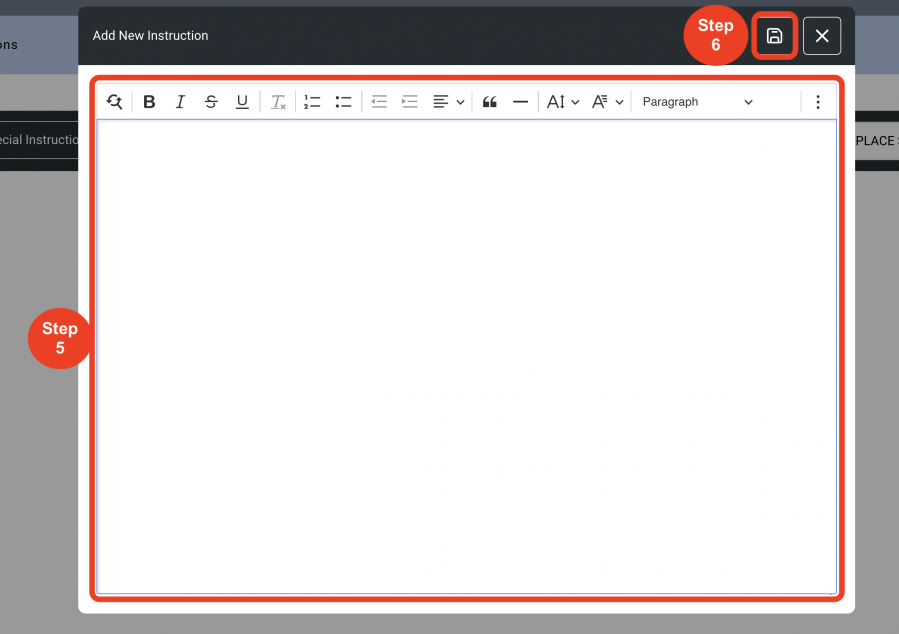
- Step 5: Type the Project Special Instruction in the text window.ie. ‘Images are for reference only.’
- Step 6: Click on ‘Save’.
Delete a Project Special Instruction
- Step 1: In the Left Navigation, click on ‘Admin’.
- Step 2: Go to 'Libraries' and click on ‘Project Special Instructions’.
- Step 3: From the dropdown at the top, select the 'Standard' that the Special Instruction will be deleted from.
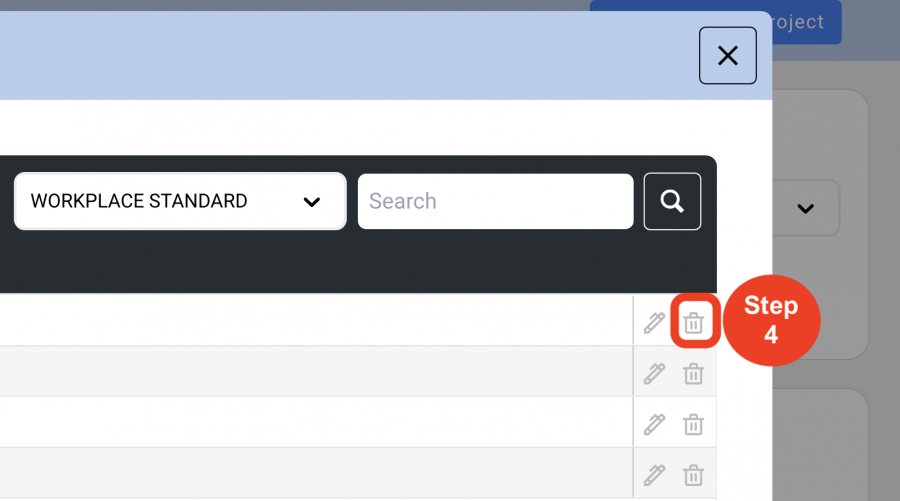
- Step 4: Click on the 'Trash Bin' icon to the right.
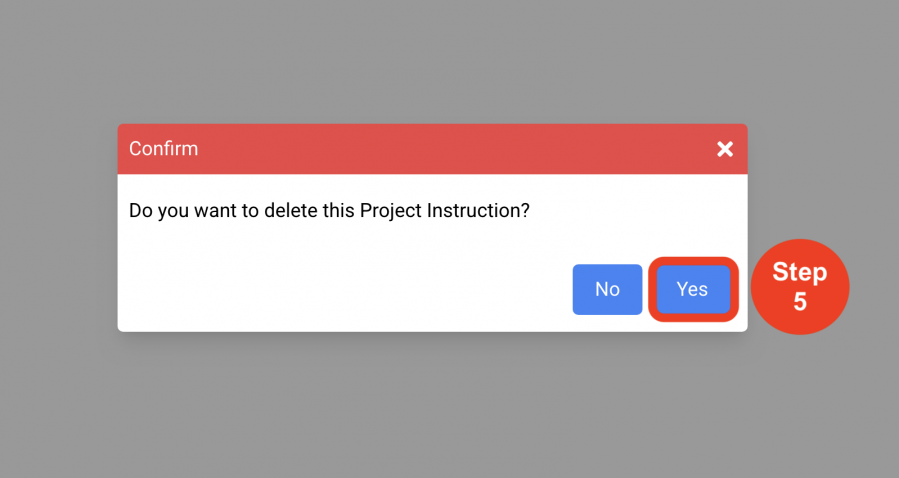
- Step 5: Click on ‘Yes’ to delete.