Create Catalog Item
QUICK TUTORIAL
Create Catalog Item
OVERVIEW
The Catalog, accessible by the entire office, can be used as a tool to create an internal library of frequently used items and products in the form of a skeleton Spec Sheet. A specification can then be created from a catalog item as it is saved to a project.
Once a spec is created from a catalog item, the catalog item will indicate which projects it was assigned to. Also, in the Spec Schedule, an icon appears to inform the user that this spec item was generated from the Catalog.
The catalog is organized by Categories and Subcategories. Tags can also be applied to an item ie. A Brand, in order to group and filter items and products.
Create a Catalog Item (8 Steps)
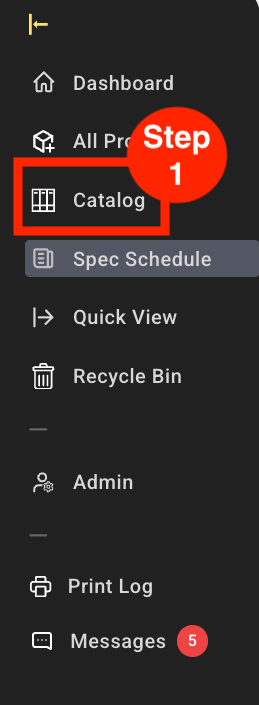
Step 1: In the Left Nav click on ‘Catalog’.
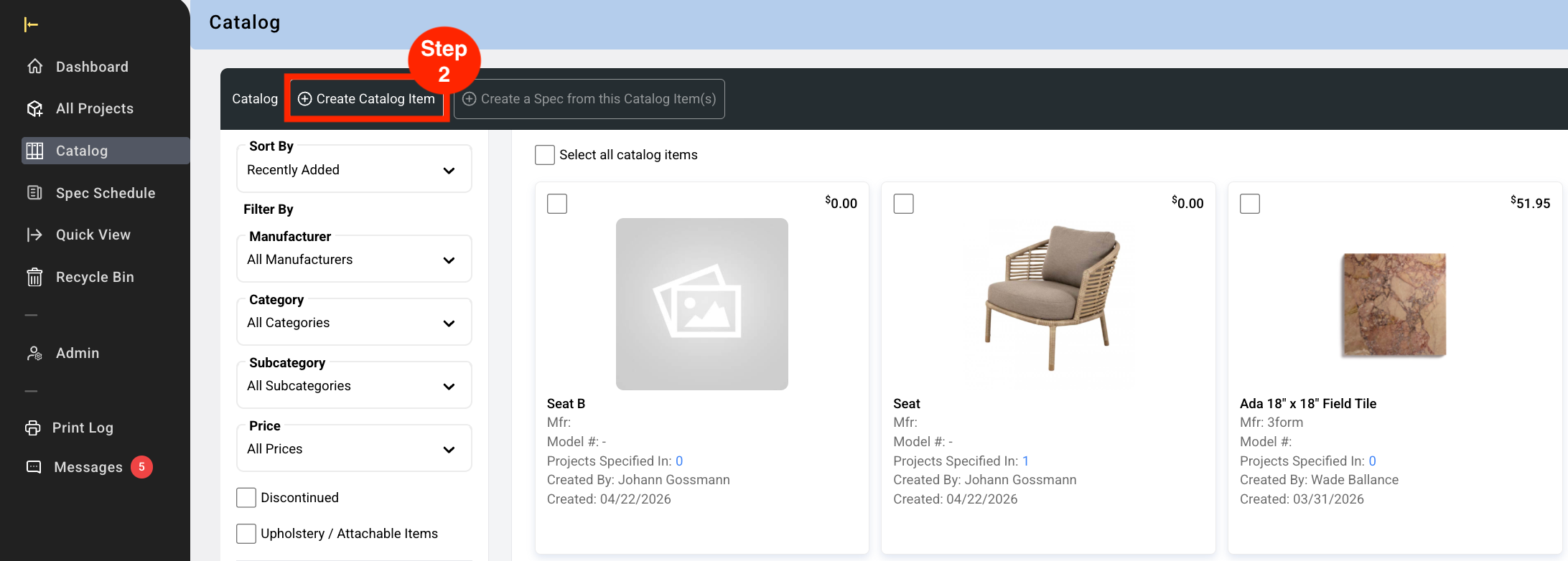
Step 2: Click on ‘Create Catalog Item’.
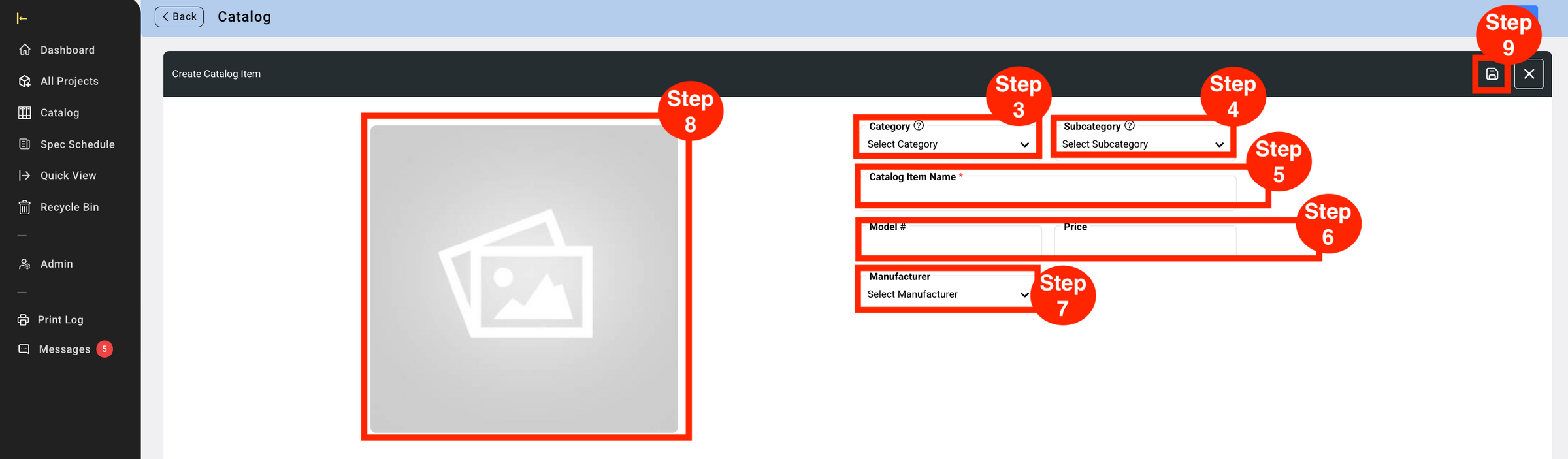
Step 3: From the dropdown select a ‘Category’.
* Categories are created and added to the list by a Super Admin or Admin Panel Manager in Admin> Categories> Create New Category. If you need a Category that is not in the current list, contact a Super Admin or Admin Panel Manager.
Step 4: From the dropdown select a ‘Subcategory’.
*Subcategories are created and added to the list by a Super Admin or Admin Panel Manager in Admin> Categories> Create New Subcategory. If you need a Subcategory that is not in the current list, contact a Super Admin or Admin Panel Manager.
Step 5: Click in the blank row below ‘Catalog Item Name’ and enter in an Item Name.
Step 6: Click in the blank row below 'Model #' and enter the item model, click in the blank row below ‘Price’ and enter in the price value. The price is used in the Filter to search for items.
Step 7: Select a ‘Manufacturer’ from the Manufacturer dropdown.
Step 8: Upload an Image. This will open a browsing window where you will be able to add an image to be used as the Primary Spec Sheet image.
Step 9: Click ‘Save’ icon.
Edit a Catalog Item
OVERVIEW
Catalog items can be edited to add additional information and images once the Catalog item is saved. Information that can be added / edited in a catalog item are:
- Main Page
- Item Website URL
- Finish / Detail #1 image
- Finish / Detail #2 image
- All images can be modified with Image Editor
- Image captions for all images
- Searchable tags
- Assign Item Type template
- Input text for the Labels from the assigned template
- Additional Image Pages
- Assign 1 image on a page, with captions, up to 4 images on a page with captions.
- All images can be edited using Image Editor
- Add Item PDFs
- Upload item related PDF(s)
Create a Catalog Item from this Spec
Spec sheets can be created from a catalog item which will appear in the Spec Schedule.
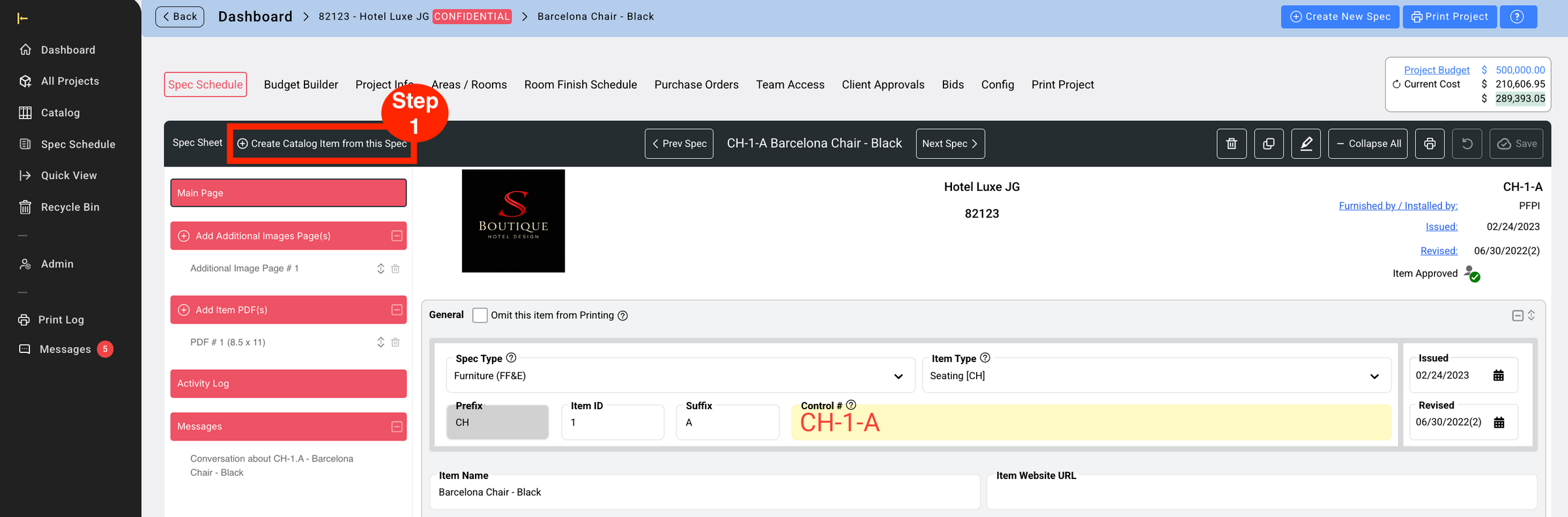
- Step 1: Click 'Create Catalog Item from this Spec'.
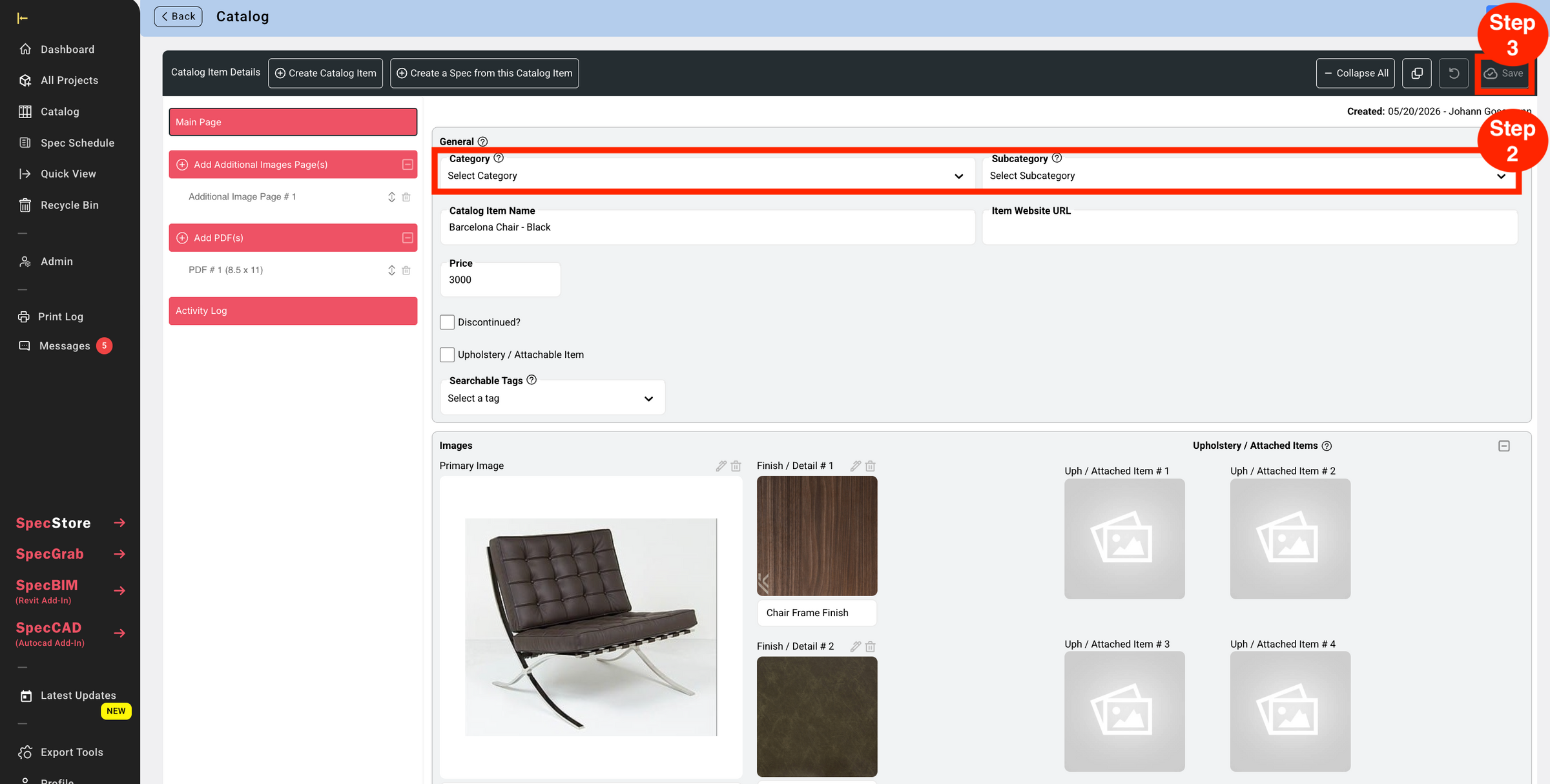
- Step 2: Select the 'Category' and 'Subcategory' from the dropdowns.
- Step 3: Click 'Save'.
Delete a Catalog Item
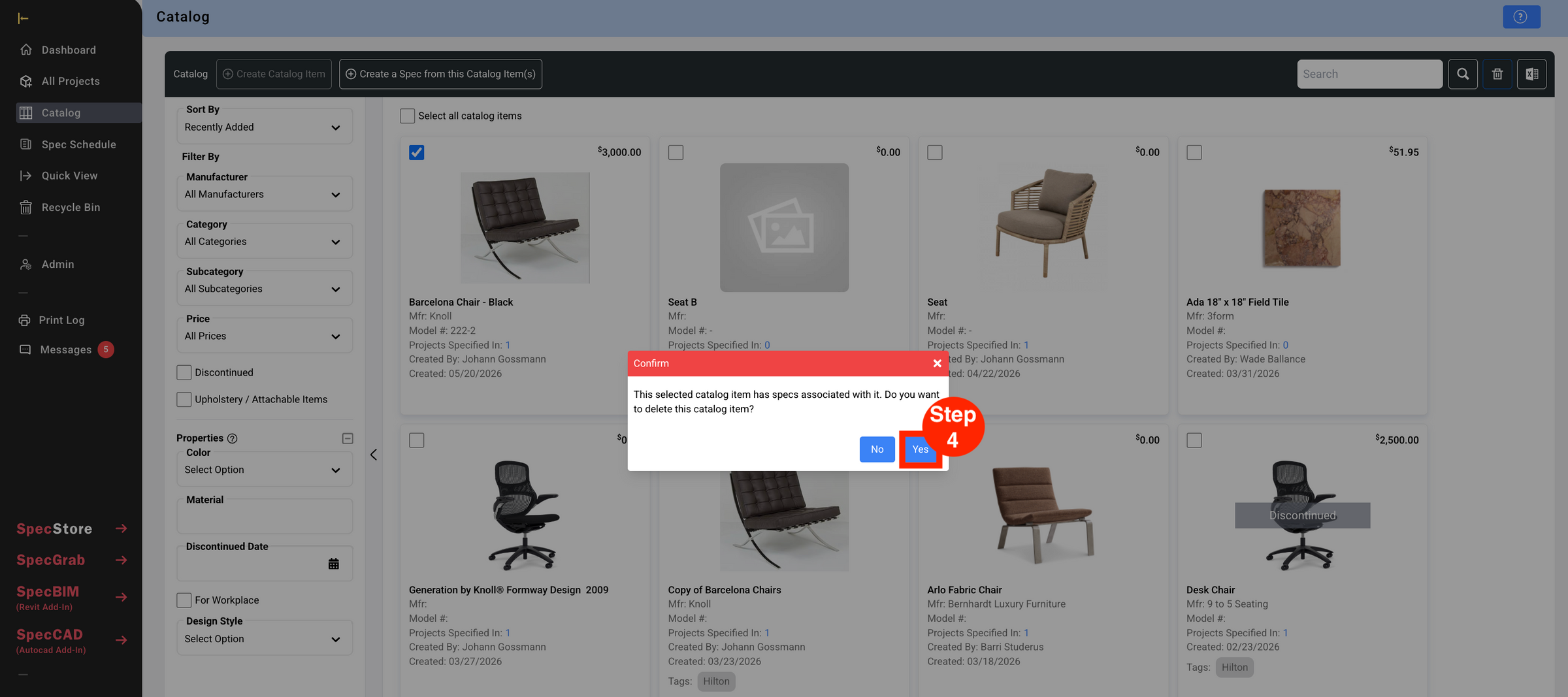
Deleting a Catalog Item will NOT delete it from any Specs that it was previously used in.
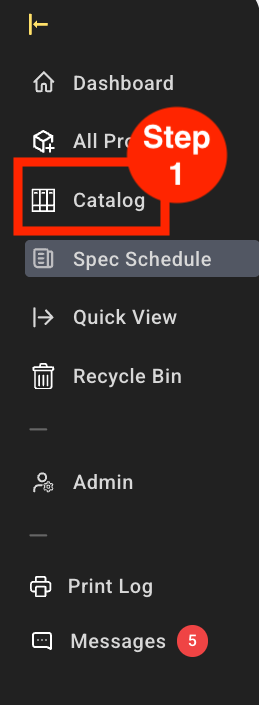
Step 1: In the Dashboard screen click on ‘Catalog’.
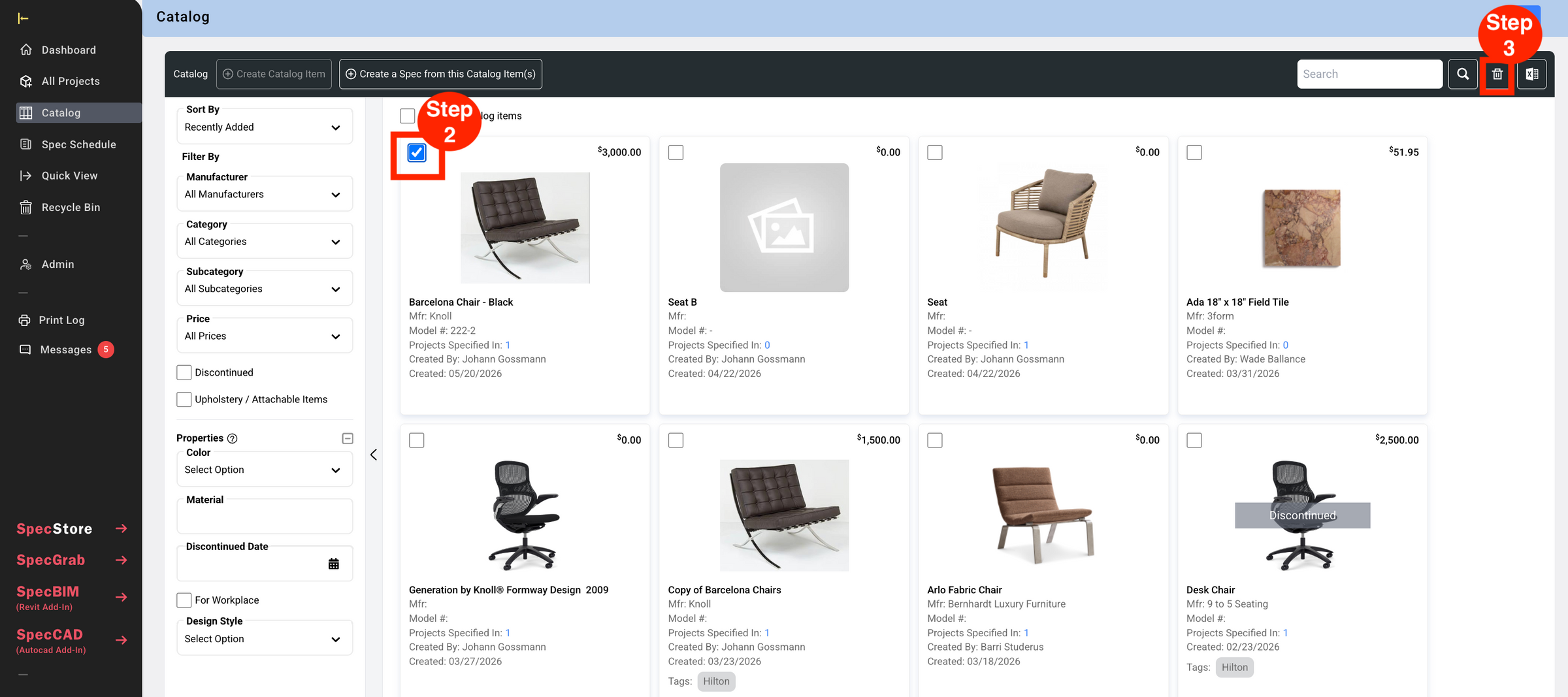
Step 2: Select the ‘Catalog Item’ by clicking the checkbox in the upper left corner.
Step 3: Click the trash bin icon.
Step 4: Click ‘Yes’ when the confirmation prompt appears.